
HDMI KVM Switch 1 Monitors 2 Computers
4.2Editor score
4K@60Hz resolution
No external power needed
Wired desktop controller
Discover the top KVM Switches for 2026. We compare features, resolution support, and connectivity options to help you choose the right switch for your setup.
KVM switches allow you to control multiple computers with a single set of peripherals. They streamline workflows for professionals who need seamless access to different systems without constant cable swapping.
Our team analyzed ten top-rated models based on resolution support, port variety, and switching ease. We evaluated real-world performance data to ensure you get reliable hardware for your workspace needs.
Each pick highlights specific strengths like 8K output or wireless control. Note that prices fluctuate frequently so always check current listings before finalizing your purchase decision today.
4.2Editor score

3.9Editor score

4.5Editor score
The following table provides a side-by-side overview of the top KVM switches available this month. Compare key specifications quickly to find the model that best fits your technical requirements.




This UGREEN KVM switch stands out for its ability to handle three monitors across two computers. It offers an impressive 8K@60Hz resolution which is ideal for high fidelity visual workflows.
We may earn a commission when you buy through this link, at no additional cost to you.
The device combines DisplayPort 1.4 and HDMI 2.1 inputs to maximize bandwidth. It supports HDR10+ and VRR to ensure smooth visuals without tearing during intensive tasks.
Users must ensure their PCs support triple monitor output for full functionality. The lack of keyboard shortcut support means switching relies on physical buttons or the included desktop controller.
It is highly recommended for professionals needing extensive screen real estate. If your hardware supports three displays this unit provides a robust connection backbone for your multi PC setup.
The switch supports 8K@60Hz ensuring future proof visual quality for advanced displays.
A desktop controller allows you to place the switch out of reach for a clean desk.
We may earn a commission when you buy through this link, at no additional cost to you.
This Hearvo switch offers exceptional value for users needing a simple two computer setup. It delivers 4K@60Hz clarity without requiring an external power adapter for basic operation.
We may earn a commission when you buy through this link, at no additional cost to you.
The Adaptive EDID feature ensures your monitor is recognized quickly when switching devices. This reduces screen flickering and reconfiguration time between different computers significantly.
While it lacks multi-monitor support it excels at sharing USB peripherals efficiently. The wired remote switch helps keep your desk tidy while allowing quick access from a distance.
It is ideal for home offices with limited desk space. If you need a reliable switch for one screen and multiple devices this model provides a cost effective solution.
Adaptive EDID ensures smooth image transmission by optimizing display settings automatically.
Four USB 3.0 ports allow you to share keyboards mice and printers between PCs.
We may earn a commission when you buy through this link, at no additional cost to you.
This KVM switch is designed for users who need high refresh rates on dual displays. It supports up to 4K@144Hz making it suitable for gaming or fast paced creative work.
We may earn a commission when you buy through this link, at no additional cost to you.
The inclusion of a desktop controller adds convenience by letting you switch computers remotely. It uses DisplayPort 1.4 to manage bandwidth effectively across two screens simultaneously.
Users should note that DP cables are not included in the package. Ensuring you have compatible high speed cables is essential for reaching the advertised maximum resolutions.
It is a strong choice for dual monitor setups needing speed. If your priority is high refresh rates across two screens this unit offers the necessary bandwidth and control features.
Achieve 4K@144Hz performance ideal for gaming or fluid visual tasks.
Share two monitors and four USB devices between two computers efficiently.
We may earn a commission when you buy through this link, at no additional cost to you.
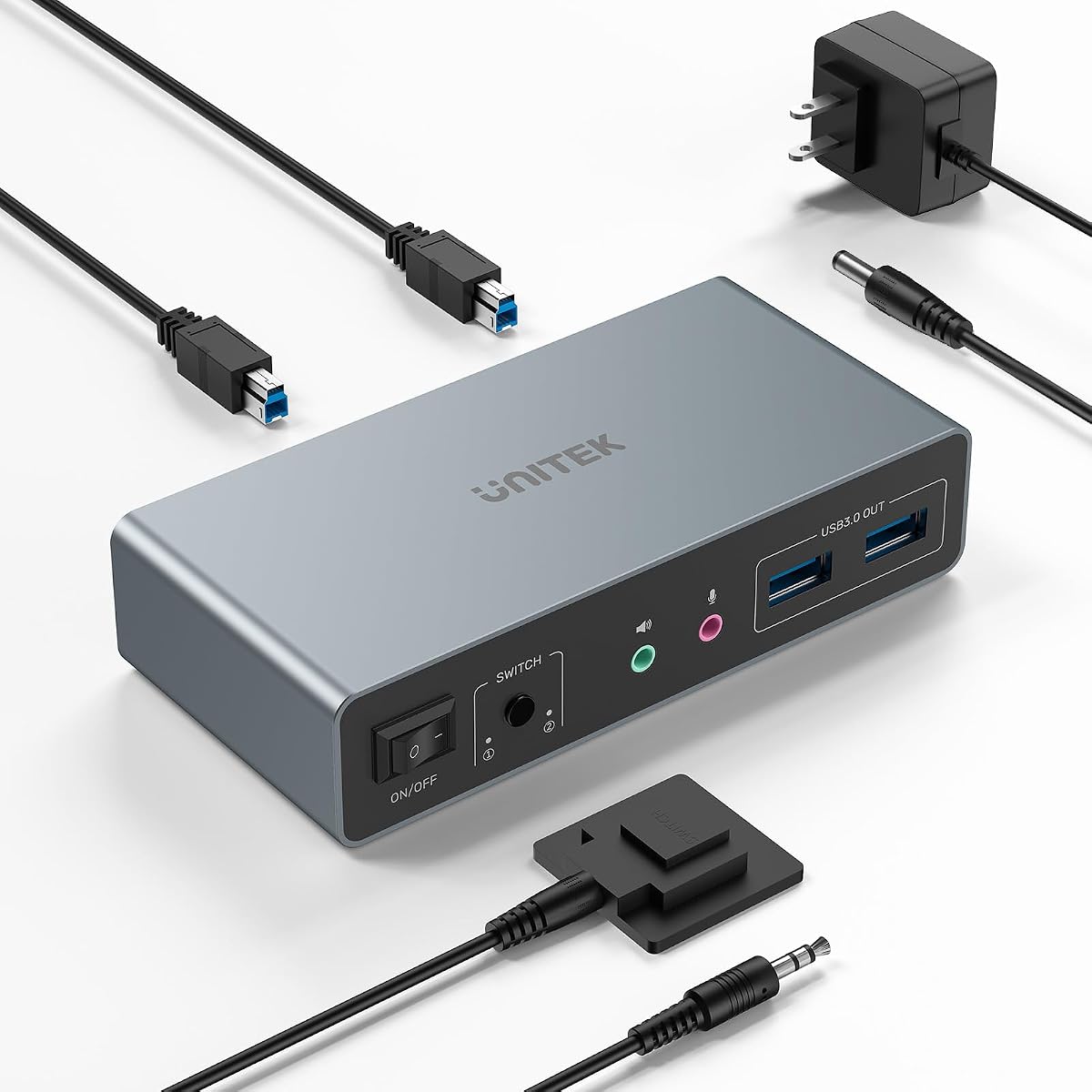
Unitek switch offers a practical solution for mixing HDMI and DisplayPort sources. It delivers solid 4K@60Hz performance across two monitors with high reliability ratings from users.
We may earn a commission when you buy through this link, at no additional cost to you.
The package includes a power adapter to ensure stable USB device performance. This is crucial when using high power peripherals like external hard drives or webcams.
It is strictly designed for desktop hosts not laptops. The requirement for specific cable setups means you must plan your connections carefully to avoid compatibility issues.
It is best for desktop environments needing mixed video inputs. If you have a combination of HDMI and DP devices this unit bridges the gap effectively.
Connect devices with both HDMI and DisplayPort outputs to the same switch.
External power adapter ensures consistent performance for all connected USB devices.
We may earn a commission when you buy through this link, at no additional cost to you.
This HDMI KVM switch is tailored for setups requiring three monitors across two computers. It supports 4K@60Hz visuals making it a solid choice for extended display configurations.
We may earn a commission when you buy through this link, at no additional cost to you.
The device allows for both extended and duplicate display modes to suit different workflows. A power adapter is included to maintain stability for connected USB peripherals.
Users must ensure each computer connects three HDMI cables for proper output. This cable density can be a drawback if you need a minimalist desktop setup.
It is suitable for users with HDMI only monitors needing extra screens. If your hardware supports triple HDMI output this unit provides a reliable path to multi display usage.
Share three HDMI monitors between two computers for expanded workspace.
Supports both extended and duplicate modes for versatile display arrangements.
We may earn a commission when you buy through this link, at no additional cost to you.
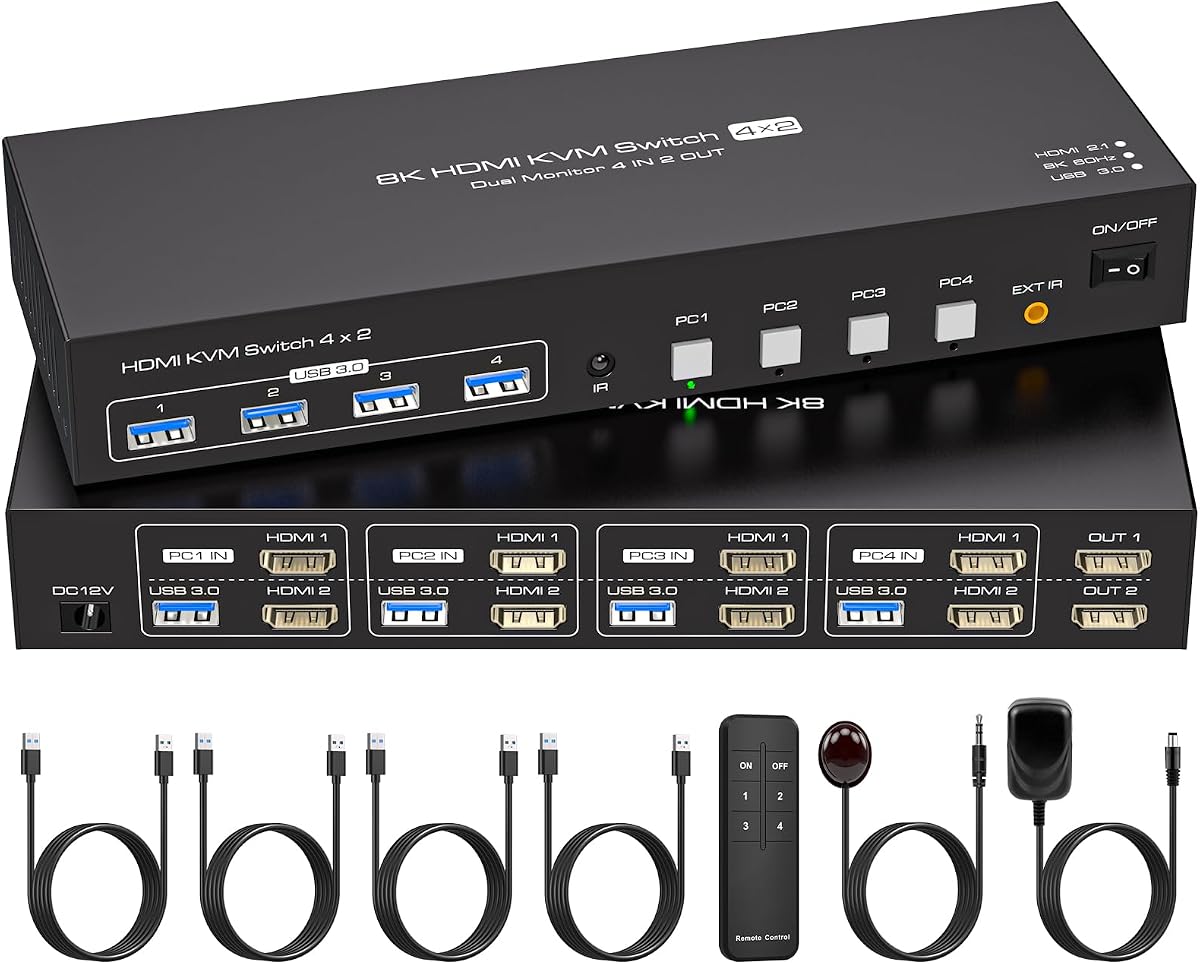
This unique switch allows four computers to share two monitors simultaneously. It boasts 8K@60Hz resolution capabilities which are rare in switches handling multiple inputs.
We may earn a commission when you buy through this link, at no additional cost to you.
Built-in EDID emulation ensures your monitors are recognized instantly without reconfiguration. This maintains window layouts and reduces downtime when switching between four different systems.
Each computer must have two HDMI ports for this to work correctly. The requirement for an external power supply adds a cable but ensures stable USB performance.
It is ideal for IT stations or test benches managing multiple PCs. If you need to control four systems from two screens this device offers a scalable solution.
Efficiently control up to four computers with a single set of peripherals.
EDID emulation keeps window layouts stable when switching between computers.
We may earn a commission when you buy through this link, at no additional cost to you.
This KVM provides remote access capabilities over Wi-Fi 6 instead of traditional physical switching. It allows you to control computers from another device using a web browser.
We may earn a commission when you buy through this link, at no additional cost to you.
The built-in touchscreen makes setup easy without technical expertise. You can manage cloud services or network settings directly from the device interface.
It uses encrypted transmission for secure data transfer between devices. This security focus makes it suitable for professional environments needing remote disaster recovery.
It is perfect for home labs or distributed teams. If you need to access and control computers remotely without installing software this unit is a premium tool.
Access computers over Wi-Fi 6 for a cleaner setup without cables.
A built-in touchscreen offers easy operation without needing external software.
We may earn a commission when you buy through this link, at no additional cost to you.
This UGREEN model offers a straightforward solution for dual monitors and two computers. It provides 4K@60Hz visuals ensuring clarity for detailed work across screens.
We may earn a commission when you buy through this link, at no additional cost to you.
A desktop controller allows you to keep the switch unit out of your way. This keeps your desk tidy while giving you easy access to switching controls.
The lack of EDID emulation may require monitor reconfiguration on switch. Users must adhere to cable length limits to prevent signal degradation during use.
It is suitable for general office tasks needing dual screens. If you need a reliable HDMI switch with controller support this unit meets those basic needs.
A desktop controller keeps the switch hidden and your workspace organized.
Four USB 3.0 ports allow fast data transfer for shared devices.
We may earn a commission when you buy through this link, at no additional cost to you.
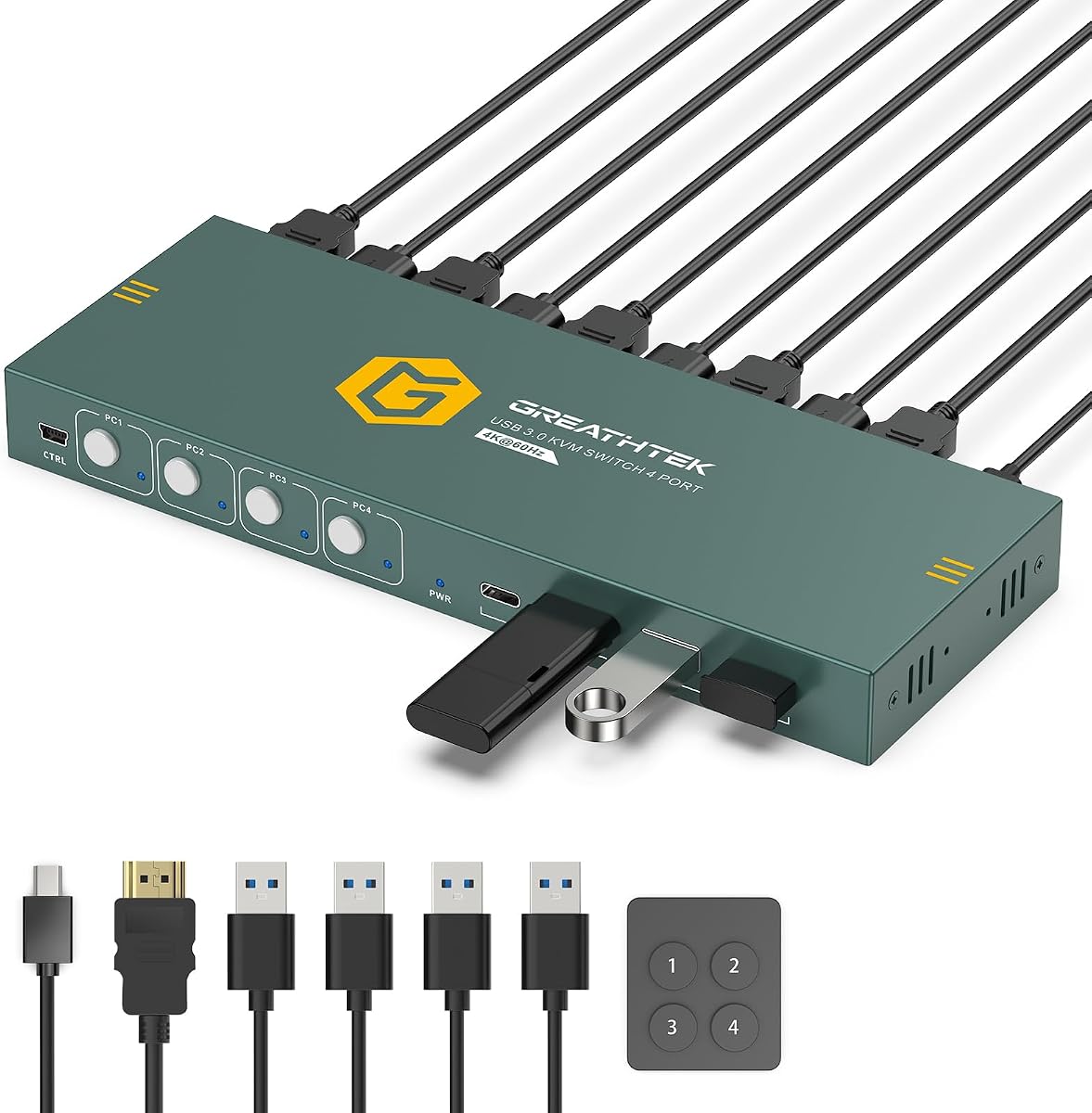
This switch allows you to control four different computers with a single monitor setup. It delivers 4K@60Hz resolution ensuring your visuals remain clear and detailed.
We may earn a commission when you buy through this link, at no additional cost to you.
The device uses EDID Adaptive technology to automatically match resolution settings. This reduces flickering and ensures smooth transitions between different computer sources.
A wired remote control provides easy access to switch between four PCs quickly. This is highly useful when the main switch unit is placed out of reach.
It is ideal for test benches or IT maintenance stations. If you need to manage multiple computers from one screen this unit offers reliable high performance switching.
EDID Adaptive ensures the monitor is always set to the best resolution.
Switch between four computers easily with front panel buttons or remote.
We may earn a commission when you buy through this link, at no additional cost to you.
This compact KVM switch is designed for simplicity and low power use. It supports 4K@60Hz resolution which is ideal for detailed viewing on modern monitors.
We may earn a commission when you buy through this link, at no additional cost to you.
It does not require an external power adapter which reduces cable clutter. This makes it perfect for users who want a minimal footprint on their workspace.
The USB ports are limited to USB 2.0 speeds which may slow data transfer. Also note that it is not recommended for use with Mac devices due to compatibility.
It is a great budget option for basic switching needs. If you need a simple plug and play solution without extra power cables this model works well.
The compact unit does not require external power for a clean setup.
Plug and play functionality allows for immediate use without driver installation.
We may earn a commission when you buy through this link, at no additional cost to you.
Choosing the right KVM switch depends on your display setup and computer count. This guide breaks down the critical factors to consider before buying.
Determine if you need one or multiple monitors. Some switches support triple or dual displays while others are limited to one screen.
Ensure the switch matches your monitor count to avoid buying a device that limits your workspace.
Count how many computers you need to connect. Switches range from two input ports up to four inputs for larger setups.
Buying a switch that matches your computer count ensures you do not have to manage multiple switches.
Check if your computers use HDMI or DisplayPort. Some switches mix these ports while others are specific to one connection type.
Matching the switch inputs to your computer outputs is essential for proper connection and signal quality.
Consider the resolution you need for your displays. Models range from 1080p up to 8K and support various refresh rates like 60Hz or 144Hz.
Select a switch that supports your monitor's native resolution to ensure clear visuals.
Look for USB 3.0 ports if you transfer files frequently. Older switches may use USB 2.0 which is significantly slower for data transfer.
Ensure the switch has enough USB ports for your keyboard mouse and other peripherals.
Decide if you prefer button switching or a remote controller. Some units offer desktop controllers for convenience while others rely on front panel buttons.
Remote controllers can help keep your switch unit hidden under the desk.
Some switches need an external power adapter to run USB devices reliably. Others are powered directly by the computer via USB.
External power is recommended if you plan to connect high power devices like hard drives.
Verify that the switch supports your operating system such as Windows or Linux. Some models have limited support for macOS.
Always check the product specifications to ensure your system is compatible before purchasing.
Connect each computer to the KVM switch using the appropriate video cables. Ensure you connect the USB cables from the computer to the switch for peripheral sharing.
Plug your monitor or monitors into the output side of the switch. Connect your keyboard mouse and other USB devices to the USB ports on the front of the device.
Power on the KVM switch if it requires an external adapter. Press the switching button or use the remote to toggle between your computers as needed.
A KVM switch allows you to control multiple computers using a single keyboard video monitor and mouse setup. It saves space and reduces cable clutter on your desk by centralizing peripheral connections.
It depends on the model. Some KVM switches draw power from the USB connection while others require an external adapter. External power is recommended for stability when using multiple USB devices like hard drives.
Most KVM switches work with both desktops and laptops. However some models specify desktop use only. Always check the product manual to confirm laptop compatibility before buying.
Flickering often occurs due to EDID mismatch between computers. Using a switch with EDID emulation can solve this by keeping monitor settings stable across all connected systems.
Yes many modern KVM switches support 4K resolution. Ensure the model you choose supports the specific refresh rate like 60Hz you need for your monitor.
Most switches use a physical button on the front panel. Others provide a wired or wireless remote for convenient access. Some advanced models support hotkey shortcuts depending on the model.
We reviewed ten top KVM switches suitable for various needs from simple dual PC setups to complex multi-monitor environments. Each option offers unique features to streamline your workflow.
Prioritize resolution support and port types to ensure compatibility with your existing hardware. Choosing the right number of inputs and outputs is key to long term satisfaction.
Prices fluctuate often so check the latest listings before making a purchase decision. This ensures you get the best value for your specific technical requirements.