
Acer 4-in-1 USB C Hub
4.2Editor score
4K@60Hz dual output
100W power delivery
Compact 4-in-1 design
Compare the top 10 dual HDMI monitor adapters for 2026. Find the best dual HDMI monitor adapter for Windows, Mac, and laptops with our expert guide.
Finding the right dual HDMI monitor adapter can transform your workspace significantly. Whether you work from home or need extra screens for productivity, choosing the correct adapter ensures smooth performance without lag or compatibility issues.
We compared ten leading adapters based on video quality, port types, and OS support. Our analysis covers USB-C hubs, DisplayPort splitters, and USB-A dongles to help you find the ideal solution for your specific setup needs today.
Each pick highlights key strengths and potential limitations to guide your decision. Prices and availability change frequently, so verify current details before purchasing to ensure you get the best value for your dual monitor configuration requirements.
4.2Editor score
4.5Editor score

4.5Editor score
This side-by-side comparison highlights key specifications across all ten adapters. Review each product's video output capabilities, port types, and operating system support to identify the best fit for your hardware configuration.


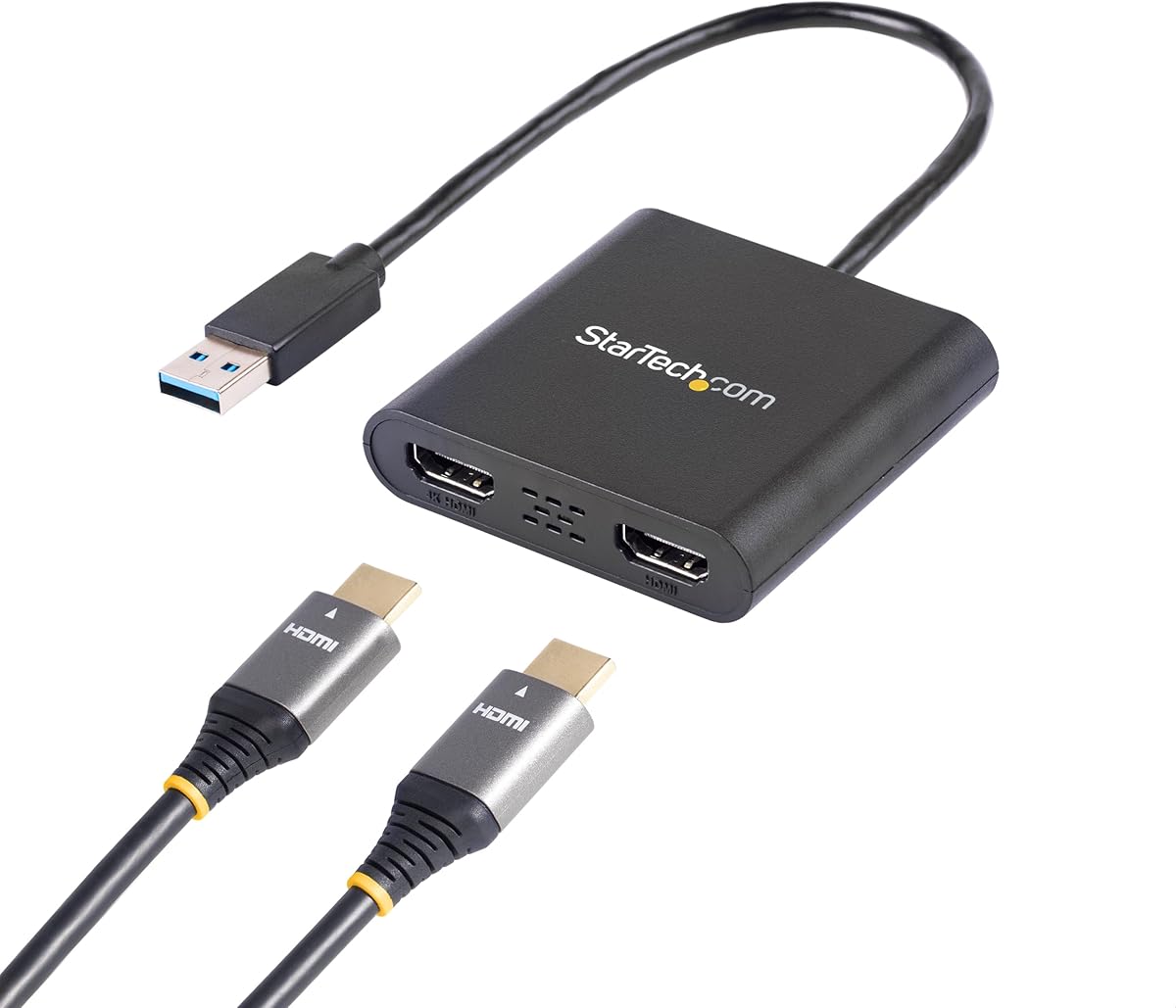
The StarTech USB-A 3.0 to Dual HDMI Adapter stands out as the premier choice for Windows users requiring stable dual monitor setups. Its robust construction and dedicated driver support ensure consistent performance across various workstation configurations.
We may earn a commission when you buy through this link, at no additional cost to you.
This adapter delivers up to 4K at 30Hz on one monitor and 1080p at 60Hz on the other, making it suitable for mixed-resolution workflows. The USB 3.0 interface provides sufficient bandwidth for smooth video transmission without significant latency.
Installation requires administrator rights which might be restrictive on managed workstations but ensures secure driver handling. The lack of macOS support limits its utility for cross-platform teams but solidifies its position for pure Windows environments.
For professionals prioritizing stability and warranty coverage, this adapter is an excellent investment. The three-year warranty and technical support provide peace of mind for long-term business use.
This adapter supports all Windows X86/X64/ARM platforms including Intel AMD and Snapdragon X Copilot+ PC devices ensuring broad hardware compatibility.
Backed by a three-year warranty and free lifetime technical assistance this product offers exceptional long-term value for professional IT deployments.
We may earn a commission when you buy through this link, at no additional cost to you.
The Acer 4-in-1 USB C Hub offers an impressive balance of features and affordability for users needing dual HDMI outputs. It delivers crisp 4K@60Hz visuals on both displays making it ideal for content consumption and multitasking.
We may earn a commission when you buy through this link, at no additional cost to you.
Beyond video this hub includes a high-speed USB-A port and a 100W power delivery port ensuring your laptop stays charged while connected. The sleek design fits easily into modern workspaces without clutter.
Mac users should note that extension is limited to mirroring due to OS constraints. The short cable length may require extension cables for setups where the laptop sits far from the monitors.
Overall this hub represents strong value for budget-conscious buyers who need high resolution dual displays. Its versatility makes it a top pick for hybrid work environments requiring flexibility.
Both HDMI ports support 4K at 60Hz simultaneously ensuring smooth scrolling and vivid visuals for productivity tasks and media viewing.
The 100W PD port passes through power to your host device keeping your laptop running during extended dual monitor sessions without extra cables.
We may earn a commission when you buy through this link, at no additional cost to you.
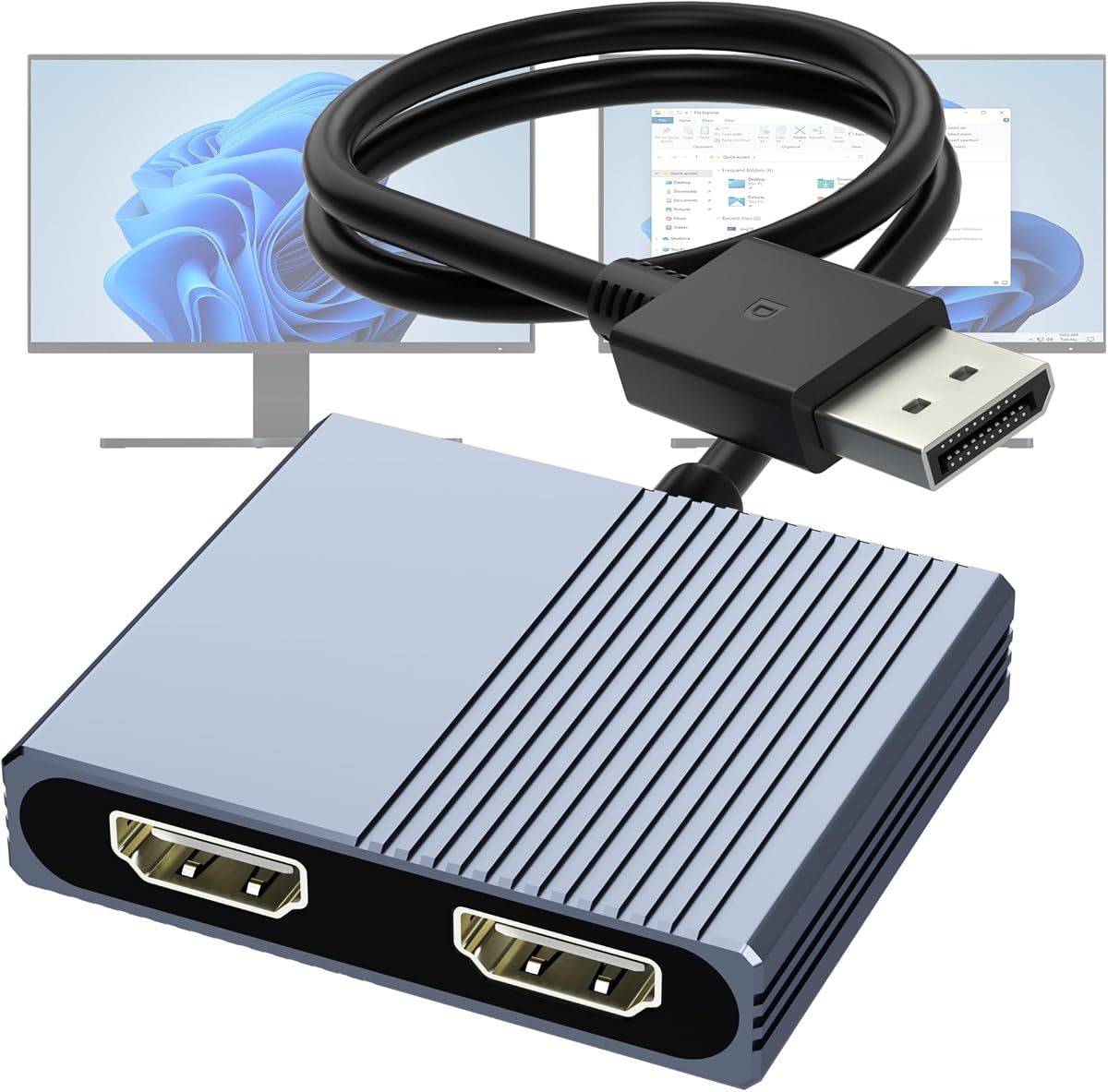
This DisplayPort to Dual HDMI Adapter excels in desktop environments where a dedicated graphics card is present. It supports dual 4K@60Hz outputs when the source device meets DP1.4 requirements ensuring high fidelity visuals.
We may earn a commission when you buy through this link, at no additional cost to you.
The splitter requires external power via a USB-C cable which might seem inconvenient but ensures stable signal transmission for demanding resolutions. The aluminum housing and gold-plated ports contribute to longevity and reliable connections.
Users must verify their graphics card supports MST mode as integrated graphics often fail in extended display configurations. It is strictly for DP source output and cannot work with other USB hubs or docking stations.
For desktop users seeking high-resolution dual monitors this adapter provides the necessary throughput. The trade-off of external power is worth the performance gains for professional editing and design workflows.
To achieve dual 4K@60Hz ensure your computer supports DP1.4 otherwise it limits to single 4K@60Hz or dual 4K@30Hz outputs.
Built with an aluminum alloy housing and gold-plated connectors this adapter resists wear and heat allowing over 25,000 plugging cycles.
We may earn a commission when you buy through this link, at no additional cost to you.
The WAVLINK adapter offers flexibility by supporting both USB-C and USB 3.0 inputs making it adaptable to various laptop generations. It extends the desktop to two monitors which is essential for multitasking across different applications.
We may earn a commission when you buy through this link, at no additional cost to you.
Resolution capabilities peak at 1080p or 1440p on one screen paired with 1080p on the other ensuring smooth performance for office productivity. Windows and macOS both work but macOS only supports mirroring for external screens.
Installation requires downloading drivers from a provided CD card which can be a hurdle for some users. Additionally it cannot play HDCP protected content like Netflix so streaming is limited compared to native ports.
For general productivity and non-media work this adapter provides reliable multi-screen utility. The wide compatibility makes it a solid choice for diverse IT environments requiring flexible connectivity options.
Compatible with Windows Chrome OS and macOS this adapter works across multiple operating systems to support various workplace setups seamlessly.
Designed for web and productivity apps like Google Docs it optimizes screen real estate for efficient document editing and multitasking.
We may earn a commission when you buy through this link, at no additional cost to you.
OREI SplitExtend stands out by supporting extended modes on macOS which is rare in this category. It allows a three-screen setup with two external monitors plus the laptop display enhancing productivity significantly.
We may earn a commission when you buy through this link, at no additional cost to you.
It connects via either USB-A or USB-C providing flexibility for devices with different port configurations. However it does require an Intel i5 processor or higher for optimal performance ensuring enough system resources for dual rendering.
The Silicon Motion driver installation adds a setup step but ensures consistent operation across supported operating systems. Windows macOS Chrome OS and Android are supported but Linux and iOS are not compatible with this device.
This adapter is ideal for Mac users needing extension without buying a docking station. The trade-off of hardware requirements is worth the unique ability to extend displays on a Mac platform.
Unlike many adapters this supports extended mode on macOS allowing different content on each monitor rather than just mirroring.
Integrated USB-A to USB-C adapter ensures compatibility with Thunderbolt and standard USB ports reducing the need for extra dongles.
We may earn a commission when you buy through this link, at no additional cost to you.
This docking station transforms a laptop into a full workstation with eight ports including dual HDMI displays. The 4K@60Hz outputs provide sharp visuals for design or spreadsheet work while maintaining system stability.
We may earn a commission when you buy through this link, at no additional cost to you.
It includes two USB-A ports and an SD card reader facilitating peripheral connections and media access. The 100W power delivery ensures your laptop charges even while driving two high-resolution screens effectively.
Mac users face the same mirroring limitation seen in other USB-C adapters but Windows users can extend easily. The aluminum housing and smart chipset prevent overheating ensuring safe continuous use.
For those needing a complete hub solution this station offers exceptional versatility. The combination of video data and power ports makes it a centerpiece for a tidy and efficient desk setup.
With eight ports including dual HDMI USB-A and SD slots this station replaces multiple accessories for a streamlined workspace setup.
Advanced temperature control and 100W input keep performance stable even during long dual-monitor sessions without risk of thermal throttling.
We may earn a commission when you buy through this link, at no additional cost to you.
This splitter is designed for simplicity connecting a single HDMI source to two displays showing identical content. It is perfect for presentations or retail settings where two screens need to show the same message simultaneously.
We may earn a commission when you buy through this link, at no additional cost to you.
It supports up to 4K at 30Hz and synchronizes audio with video through the HDMI connection. The plug-and-play nature means no drivers or software configuration is required for immediate use.
While it lacks extended display capabilities it excels in mirror scenarios. The compact design and easy setup make it a cost-effective solution for businesses needing dual displays without extra configuration.
For basic mirroring tasks this adapter saves time and money. It is not suitable for productivity extension but fulfills its role as a reliable mirror device for various digital displays.
No drivers or software are needed so you can connect and start displaying content on two screens immediately after plugging in.
Audio signals are transmitted alongside video ensuring synchronized playback on both screens without separate audio cables.
We may earn a commission when you buy through this link, at no additional cost to you.
The Selore&S-Global adapter delivers premium performance with dual 4K@60Hz outputs using MST technology. It supports extension on Windows making it versatile for users needing different content on each screen.
We may earn a commission when you buy through this link, at no additional cost to you.
A USB-A port enables 5Gbps data transfers alongside video output ensuring peripherals and storage remain accessible. The 100W power delivery allows simultaneous charging without compromising display performance.
Mac users are limited to mirroring but Windows users can fully utilize the extended mode. The compact design and robust chipset ensure stable connections even during intensive workloads.
For professionals seeking high-fidelity dual screens this adapter provides top-tier reliability. The balance of features and performance justifies its premium positioning in the market.
DisplayPort MST allows two distinct screens on Windows enabling true extended desktop setups without requiring two separate USB ports.
The 5Gbps USB-A port supports quick file transfers ensuring you stay efficient while using dual monitors for daily tasks.
We may earn a commission when you buy through this link, at no additional cost to you.
This adapter is tailored for desktop PCs with dedicated graphics cards offering dual 4K@60Hz outputs seamlessly. The aluminum alloy housing and gold-plated connectors ensure signal integrity and resistance to corrosion over time.
We may earn a commission when you buy through this link, at no additional cost to you.
It supports extended and mirror modes on Windows providing flexibility for multitasking across two screens. The plug-and-play feature removes the need for driver installations making setup quick and straightforward.
Mac users can extend but only to one screen due to OS constraints. The requirement for a DP1.4 source means integrated graphics may not support dual 4K@60Hz effectively.
For desktop users with NVIDIA or AMD cards this hub offers reliable performance. The durable build and easy setup make it a top choice for long-term daily use.
Requires a computer with a DP1.4 port to achieve dual 4K@60Hz ensuring high bandwidth for detailed video output.
Multi-layer shielding and gold-plated ports prevent interference ensuring clear video signals even in electrically noisy environments.
We may earn a commission when you buy through this link, at no additional cost to you.
This six-port hub provides dual HDMI outputs alongside multiple USB-A ports and power delivery for a complete solution. It is ideal for laptops with limited ports needing both video expansion and peripheral connectivity.
We may earn a commission when you buy through this link, at no additional cost to you.
Both HDMI ports support 4K@60Hz ensuring smooth visuals for work and media. The USB-C PD port handles up to 100W of power delivery keeping your laptop charged during operation.
Mac support extends to ABB but Windows supports MST for full extension. The slim build and lightweight design make it easy to carry for remote work or travel.
For users needing a compact all-in-one tool this hub balances features well. The driver-free setup ensures immediate use upon connecting to your device.
Six ports including dual HDMI and three USB-A provide enough connectivity for a full keyboard mouse and monitor setup.
Its lightweight build fits easily into a laptop bag making it perfect for professionals who work from different locations.
We may earn a commission when you buy through this link, at no additional cost to you.
Selecting the right adapter depends on your laptop ports operating system and resolution needs. This guide outlines the essential factors to consider before purchasing.
Identify whether your device has USB-C DisplayPort or USB-A. USB-C with DP Alt Mode offers the most versatility while DisplayPort sources need MST hubs for dual outputs.
Check your laptop manual to confirm which ports support video output before buying an adapter.
Ensure the adapter supports the resolution you need. Dual 4K@60Hz requires higher bandwidth than dual 1080p so match your monitors to the adapter capabilities.
For high refresh rates look for HDMI 2.0 support or DP1.4 to avoid refresh rate limitations.
Windows and macOS behave differently with external monitors. Windows often supports extended modes via MST while macOS usually limits USB-C adapters to mirroring.
Verify the product notes regarding Mac support to avoid unexpected limitations in your workflow.
Some adapters require driver installation which can be a hurdle on work computers. Look for plug-and-play options if you cannot install software freely.
Driver-dependent units often offer better performance but need admin rights which might not be available.
If you plan to run your laptop off the adapter check for PD support. A 100W PD port ensures your device stays charged while driving two external displays.
Without power delivery your laptop may drain quickly especially during intensive tasks on dual screens.
Aluminum housings and gold-plated connectors indicate durability and better heat dissipation. Cheap plastics might overheat causing signal drops during use.
Investing in a sturdy adapter reduces the risk of hardware failure over time.
Short cables can restrict desk layout options. Check the included cable length to see if it suits your setup or if you need an extension.
Longer cables offer flexibility but ensure they do not cause signal degradation if using passive extensions.
If you watch streaming services ensure the adapter supports HDCP. Some budget units block protected content so verify compatibility before use.
For productivity work this might not matter but for media consumption it is a critical feature.
Connect the adapter to your laptop using the recommended port and then attach HDMI cables to both external monitors. Ensure the host device is powered on before plugging in the adapter to avoid boot errors.
Install any required drivers if the system does not recognize the displays automatically. Use Windows Display Settings or System Preferences to arrange monitors in extended or mirrored mode.
Keep the adapter in a cool dry place when not in use to prevent overheating and dust buildup. Regularly inspect cables for damage and avoid bending them sharply to maintain signal integrity.
Most USB-C dual HDMI adapters only support mirroring on macOS due to system limitations. Some specialized adapters using DisplayPort MST allow one extended screen but dual extension is rare on Mac devices.
Some adapters especially those supporting 4K660Hz require external power for stability. USB-C hubs often draw power from the laptop but check if your model needs a separate cable.
Integrated graphics may not support extended modes for dual monitors on all models. Check your specific processor documentation to confirm it supports MST or multi-monitor display output.
Most dual HDMI adapters are not compatible with other docking stations or KVM switches. They expect a direct connection to a video source like a laptop graphics card.
Flickering can result from loose cables incorrect resolution settings or insufficient power. Ensure all cables are secure and match the adapter to monitor capabilities.
Dual 4K@60Hz requires high bandwidth and DP1.4 or HDMI 2.0 support. Verify your laptop and adapter match these specifications to achieve both screens at maximum resolution.
Some adapters support Linux but many require proprietary drivers that may not be available. Check the manufacturer's website for Linux support before purchasing.
The StarTech adapter stands out for Windows users needing reliability while the Acer hub offers excellent value for budget setups. Both provide solid dual monitor support for different user priorities.
Prioritize power delivery and resolution support based on your daily workflow. If you need extended modes on Mac verify compatibility before buying to avoid return hassles.
Always check current pricing and stock availability before purchasing to ensure you get the best deal. Your ideal adapter depends on balancing performance compatibility and cost for your workspace.